Big Game Help Center
Learn how to get started, set up games, add side action, and make every round more fun with Big Game. Can’t find what you’re looking for?
Contact us at: custserv@biggamegolf.com
We Got Your Back
Getting Started
Create your account, set your profile, and get playing fast.
Side Action
Create and track friendly wagers and fun challenges.
Game Management
Set up games, add players and contests, and manage settings.
Scoring and Leaderboards
Enter scores, use a web-scorecard, see live results, and use Silent Mode.
Golf Game Log and Scoring Stats
See your history, performance trends, and Big Games.
Home Dashboard
Access Quick Actions, Golf and Social widgets, Wallet, Chat, and Profile.
Wallet and Payments
Track who owes who and how to settle up.
Chat
Talk with your group before, during, and after rounds and many more
Contest Type Details
Review all the individual, team, and group contest formats and options.
Friends and Rosters
Add friends, build rosters, and invite your crew.
Getting Started
Getting Started covers the basics of creating your account, setting up your profile, adding friends, and preparing to play your first Big Game. This is the fastest way to become familiar with the app so you can jump into a round in seconds.
- Upload a photo in Settings to represent you in games, Side Action, and Chats.
- Complete your profile so friends can easily find you.
- Add your USGA GHIN to My Profile to automatically sync your handicap.
- Set your Home Course to speed up game setup.
- Use the Quick Actions on your Home Dashboard to start a game instantly.
- Create Favorite Contest Combos to add your standard contests faster in-game setup.
- Manage your Notifications and turn on tooltips and screen-based in-app Help in Preferences.
- Make sure you have an internet connection — scoring, contests, and Side Action update in real time.
How do I create an account?
Big Game requires your cell phone number and a name to create an account. The app securely stores your rounds, contests, friends, and profile data.
How do I log in?
To log in, enter your cell phone number, then a unique 4-digit code that is sent via SMS.
Do I need friends added before I can use Big Game?
No. You can set up and play solo rounds and add friends later.
Does Big Game require an internet connection?
Yes. Live scoring, Chat, Side Action, and contests all update in real time.
Can guests play without downloading the app?
Yes. You can add guests to a game. They appear in scoring, leaderboards, and contests even without creating an account.
Can I edit my profile after signing up?
Yes. Go to Settings to update your name, photo, handicap, and preferences.
Account Creation
Sign up using your cell phone number. Your account stores your rounds, Side Action, Friends, and Stats.
Profile Setup
Add a photo, display name, and optional handicap. This makes it easier for friends to find and recognize you in games.
Home Course
Set your main course and tee set to speed up game setup. You can still choose any other course for future rounds.
Notifications
Control push and in-app alerts for invites, Side Action, scoring updates, and Chat under Settings → Preferences → Notifications.
Home Dashboard
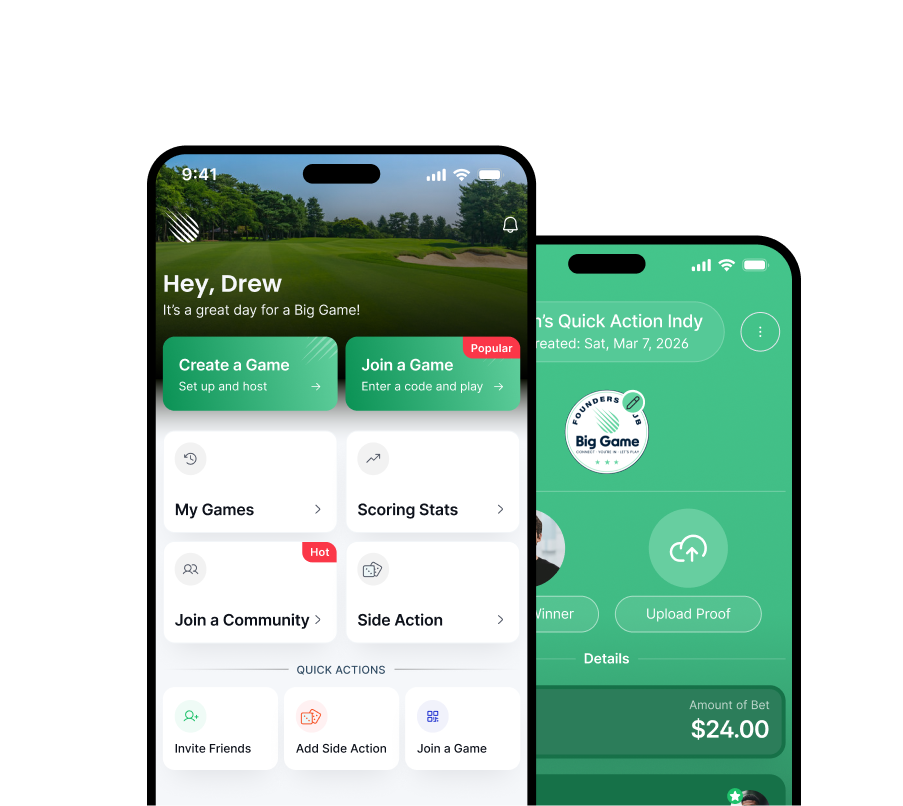
The Home Dashboard is your central hub for starting games, joining games, managing Side Action, checking your upcoming rounds, and navigating to key features like Wallet, Chat, and Settings. It gives you quick access to everything happening before, during, and after your rounds.
- Use Quick Actions to invite friends, instantly start a game, add a Side Action, or join a game with a code.
- Check Active Games to jump back into scoring, review the leaderboard, or make changes before, during, or after the round.
- View Upcoming Games to see what you have scheduled.
- Access the Golf and Social Widgets to view Game History and Stats and manage Friends and Side Action.
- Tap icons on the bottom navigation bar for the Wallet, Chat, and Settings.
What are Quick Actions on the home screen?
Quick Actions let you instantly invite a friend to the app, start a game, add a Side Action, or join a game.
What’s the difference between Play Now and Create a New Game?
Play Now automatically sets up a new 1-person game at the nearest course with scoring that starts on the first hole. Create a New Game allows you to preset and schedule all your game options with invites.
Can I adjust the game settings after starting with Play Now?
Yes. You can Add Players from the Scorecard or go back to Game Details to make changes to any game parameters, including players, contests, wagers, etc.
How do I check and manage my Notifications?
You may view and manage your notifications by selecting the bell icon in the upper right corner of the Home Dashboard.
Create a New Game
Start or schedule a game by setting a date and time, selecting a facility and tees, adding players and contests, determining teams and groups, customizing contest formats and wagers, identifying who’s in or out, and using advanced settings.
Quick Actions
Shortcuts for the most common tasks: invite a friend, play now, add side action, or join a game.
Golf Widgets
Cards that show your game history and scores. Tap any card to open the game to review the details.
Social Widgets
Manage your friends and rosters, and side action activities.
Game Management
Game Management covers creating games, adding or removing players, selecting tees, configuring contests, managing groups and teams, and adjusting advanced settings throughout the round.
- You can set up a new game from the home screen in under 30 seconds by selecting Play Now.
- Add Players from your Friends list, Rosters, as Guests, or search for Members.
- You can edit game details before, during, or after the round.
- Player handicaps and tees can be adjusted via their Player Card.
- Use Advanced Settings for Silent Leaderboard, Pay Before Play, and admin roles.
- Game Organizers and Players can toggle In or Out for any Contest included in the game.
- Most Contests can be played as Gross, Net, Net Off-low, Net-As Is, or Stableford.
- Teams and Groups can be set up or randomized via the menu in the Players → Teams or Groups tabs.
How do I start a new game?
From the Home Dashboard, either tap Play Now to immediately go to the first hole and start scoring or select Create a New Game, then choose your course, tees, holes, players, contests, and schedule the round.
Can a game be saved as a draft?
Yes. If you need to return to the game setup later, you may exit to the Home Dashboard and select to Keep/Save the game. To complete the game details, go to the Game Log widget and select Drafts to find it.
How do I create a game name and add a photo?
In Game Details, select the edit icon next to the default game name to change it (up to 25 characters). You may also select the photo icon in the upper left corner to add a game photo.
Can I specify 9 or 18 holes, front or back, and starting hole?
Yes. The Game Organizer can select a 9 or 18-hole match starting on any hole via the Facility section of Game Details.
Can I modify a game after it’s created?
Yes. You can edit players, tee sets, and game settings at any time before, during, or after a round is completed.
How do I add and invite players or guests to a game?
Go to the Players → Invite and Manage → More Players. You can search Members and Guests (if they’ve previously been added), Guest Lists, or add from your Rosters. All players default to Pending status, but you can select Set All from the Add Players screen to automatically add everyone In the Field.
Can I add or remove a player after we’ve started?
Yes. To add a player, select Add Player from the Scorecard. You may need to make sure they are added to your playing group. When a player is added after the game has started, they are given an “X” (net double bogey) for all holes already completed per USGA guidelines.
To remove a player, go to Game Details → Players → Invite and Manage. Select the player and swipe left on their card to delete them from the game.
Can I adjust a player’s handicap or tees?
Yes. Select the Player Card for any individual to adjust their handicap or tees for the game. If the player is synced with the USGA, you must unlink their account.
Can I set a handicap for a guest player?
Yes. Guests do not sync with the USGA and must have their handicap added manually. All guests are created with a default handicap of 10. To change it, select the guest Player Card and enter the number of strokes they’ll receive for the round. Note, if they’re only playing 9 holes, you’ll need to adjust their handicap to a 9-hole value.
How do I set up Teams for games that allow it?
In Game Details, go to Players → Invite and Manage → Teams. You can Create a New Team and Add Players, or you can select the Menu and Randomly Create 2-man Teams.
How do I set up more than one playing Group?
In Game Details, go to Players → Invite and Manage → Groups. You can Create a New Group and Add Players. Each Group can have its own photo, tee time, and starting hole (for a shotgun start). Note, players can be moved between groups before or after the round has started.
Can players or groups participate in a Big Game without the app by using regular paper scorecards?
Yes. The Game Organizer can send a web link to any groups or players so they may manually enter their scores using a web interface. Game Organizers may also go to Players → Invite and Manage → Groups and select to Edit Scorecard. From there, they can add or change any scores.
Can I move a player from Pending to In the Field?
Yes. The Game Organizer can manually move players from>to any playing status. Players that are invited will also be moved to In the Field if they Accept the invite. Players who do not accept the Invite are placed in Declined.
Do Declined players still have access to the Game Chat and Leaderboard?
Yes. All players invited to the game are added to the Game Chat and can see the live leaderboard regardless of their playing status. However, a Declined player may be Deleted by the game organizer to fully remove them from accessing any aspects of the game.
Can I set a limit on the number of players in a game?
Yes. In Game Details, go to Players → Invite and Manage. Select the Menu option and set the Max Field size. Once the max field has been met, all future game invite accept responses are placed in the Waitlist. If a player in the field drops, then the 1st player on the waitlist gets added. The Game Organizer can override this at any time.
How do I add Contests to a game?
Select Contests from the Game Details screen. Then select from Individual, Picker, team, or Group contests. You may also select from your pre-saved Favorite Combos. Once a game is selected, be sure to review the contest settings and wagers.
No. You may select any Contest and remove the wager value from it.
Do Contests calculate automatically?
Yes. Contests auto-calculate based on scoring or selecting winners in the Scoring interface.
What types of Contests exist?
Individual – individual vs. individual; Picker – dynamic individual/team, Team – 2-man vs. 2-man, Group – any size playing group vs. any size playing group
Can I combine multiple Contests in one round?
Absolutely. You can run an unlimited number of Contests, and Big Game will track all of them side-by-side.
Can I customize a Contest?
Yes. Contest settings and wagers can be customized by enabling and selecting their options.
How can a player be removed from a Contest?
The Game Organizer or Player can use the In/Out Settings on the Game Detail page to toggle in/out settings for all Contests in the game.
Can guests participate in Contests?
Yes. Guests appear in Contest results and leaderboards.
Do Contests affect Side Action?
No. They are treated and managed separately, but both their outcomes appear in the Wallet.
Can I save my preferred Contest setups?
Yes — use Favorite Contest Combos to create templates for future rounds.
Yes. The Game Organizer can add or remove contests at any time. They may also change the contest details and wagers before a game has been finalized.
How do I close out a game?
Once scoring has completed, you’re returned to the Game Details screen to View Results and confirm everything. Once everything is finalized, select to Set Game as Official to close it and send results to all participants.
Can a completed and closed round be modified?
Yes. The Game Organizer may go into a completed game and make it Unofficial. Once changes are made and the round is set back to Official, game results and Wallets are updated, as needed.
How does Pay Before Play work?
If the Game Organizer selects this Advanced Setting, players are notified and sent buy-in links. Players are unable to participate in the game until the Game Organizer records that they’ve been paid. The Game Organizer can also send reminders to players to pay before the game starts.
What is the advanced setting Big Game for Stats?
This setting enables players to track a subset of their handicap for specific game types and formats. For example, what is my handicap when I play a money game versus a casual round.
Can spectators watch a game or get in on the side action?
Yes. Everyone who is invited to the game is added to the game chat and can view the leaderboard. They may add side action, pictures, videos, and talk smack in the game chat.
What is a Silent Leaderboard?
Silent Leaderboard hides scores and standings until the round is complete.
Game Picture, Name, and Code
Select a picture to represent your game. The picture also becomes the Icon for the Game Chat. Create a name for your game (up to 25 characters) that also serves as the Game Chat name. Copy and provide the game code to players to allow them to “Join with Code” from the Login or Home screens.
Tee Time
Select the date and start time for your round. Once scheduled, all invited players will see the tee time in their app and notifications.
Contests
Add the contests and select their specific formats, custom settings, and wagers. Specify scoring type from net, gross, or Stableford. Choose from individual, picker, team, or group games. Pick from previously created Contest Favorites that may be set up in your Profile.
Contest Set Up
Select, combine, and customize contests for any round—before, during, or after game play is marked as final.
Contest Description
Select a Contest information icon for a description and how it is played.
Players
Add and invite Friends, Rosters, or new players (guests). Set up and manage playing groups and times. Create group names and add a group photo. Specify or randomly generate teams (if playing team-based contests). The app will automatically move players from Pending to Field, Waiting, or Declined based on their invite response. The organizer can manually move players between statuses of Pending, Declined, Waiting (waitlisted), or In the Field. Declined players may still view the game results and participate in the Game Chat.
To manually adjust an individual player’s handicap or tee set, select a player and update the entries in their Player Profile.
Group scorecards may be adjusted in the Players → Groups section by selecting the edit icon on any Group card. You may also text a Web Link for Scoring to the players in the group to allow scores to be entered from a web interface.
Advanced Settings
Turn on “Silent Leaderboard” to suppress displaying the score and contest results until after the round is completed.
Turn on “Set as Big Game for Stats” to track a player’s “Big Game” handicap when they play money games.
Turn on “Manage the Pot with Pay Before Play” to collect money in advance and restrict players from participating until the organizer has marked them as collected before the game starts. Reminder links are sent to all players when this option is enabled.
Administrators
Designate assistant game Admins, Scorekeepers, or Caddies. Admins can change any game details. Scorekeepers can enter scores for their group (only 1 scorekeeper per group). Caddies are non-playing participants who can keep score for the group.
Schedule
When everything looks right, tap Schedule to lock it in. This will finalize your round and notify all participants via in-app and text notifications. If the game is scheduled for today, you may start it.
Scoring and Leaderboards
Scoring covers how to enter strokes, navigate between holes, update scores, manage scoring errors, and access Leaderboards and contest results during your round.
- Tap any player to enter or edit scores on the Scoring screen.
- Swipe between holes for faster scoring entry.
- Jump to any hole by tapping the hole number at the bottom of the screen, then select the hole to jump to.
- Click the checkered flag icon up top to view the Leaderboard scores and contest results.
- All Contest wager results are shown as net winnings or losses. Select the Player to see their gross wager information.
- Add side action by selecting the dice icon at the top.
- Tap the back arrow in the upper left corner to return to Game Details to make contest changes.
- Access the game Chat by using the icon in the upper right corner.
Can multiple players enter scores at the same time?
No. Only scorekeepers can enter scores.
What if I make a scoring mistake?
Scores can be updated within the scoring interface by tapping the hole at the bottom, then selecting the hole that needs to be updated. Scores can also be updated from Game Details by selecting Players → Groups. Select the specific group and edit icon, then the Edit Group Scorecard option will be available.
How do I add players from the Scoring interface?
Select the people/+ icon up top, search for a member or guest, and hit Done. The player(s) will be added to the existing group.
How do I remove a player from the game/scorecard or move them to another group?
Players can be removed or moved from the Game Details → Players section. Select a player and swipe left on their card to delete them from the game. To move a player between groups, go to the Groups section. Select the current Group that they’re in and swipe left on their card to remove them. Open the target Group, then select Add Players.
What do the dots indicate on the field where you enter a score?
A single or double dot indicates the strokes that the player is receiving on the hole based on their handicap. This is used when calculating a net score.
What does an “X” indicate on a scorecard?
An “X” is given as a score when the player does not complete the hole. When a player has an “X” on the scorecard, it is calculated as a net double bogey for scoring purposes.
Can I change a player’s handicap or tees from the Scoring interface?
Yes. Tap the Player Card and select to change tees or handicap for the game.
If you’re playing a Net game, are scores entered gross or net on the scorecard?
All scores entered in the scorecard should be gross. The app will automatically calculate the net scores and display it on the Leaderboard.
How do I see the leaderboard?
Tap the checkered flag icon within any active game or View Results from the Game Details screen.
What types of leaderboards exist?
Big Game has a Scores leaderboard that shows the gross and net scores for all players. There is also a Contest Results leaderboard that shows the overall and individual contest leaders.
How do I see the detailed results for a specific contest?
Select the Contest Results leaderboard, then the Contest tab. It will then show the detailed leaderboard for that specific contest. Tap on any player to see their detailed scores and contest results.
What are the values displayed for Contest Results?
All Contest Results display the net winning and losing wagers. A winner’s buy-in is backed out to display their net proceeds. You can view the gross winnings or losses by selecting a Player’s card.
How do I turn on the Silent Leaderboard?
From the Game Details → Advanced Settings, select the Silent Leaderboard toggle. This will suppress the live leaderboard while the game and scoring are still active. The leaderboard will appear after all scores have been entered.
What happens when I add Side Action from the Scoring interface using the dice icon?
Side action is added to the game chat and can be managed from it or the Side Action widget on the Home Dashboard.
Hole-by-Hole Scoring
Enter strokes quickly by selecting a value from the preset options for each player. Jump to another hole by selecting the hole number at the bottom of the screen. Toggle between holes by selecting the forward or backward chevrons at the bottom of the screen.
Live Leaderboards
See standings, hole-by-hole performance, and contest results in real time.
Scoring Modes
Supports different game formats like Banker, Nassau’s, and Junk.
Add Players
Add new players to the existing group at any point during the game by selecting the people icon at the top.
Side Action
Add Side Action on anything at any time during the game by selecting the dice icon up top.
Game Chat
Communicate, interact, add photos or videos, and get in on the side action from the game Chat.
Player Cards
Tap a Player Card to adjust an individual’s playing tees, handicap, or Contest in/out settings. You may also remove a player by selecting Remove this Player from the Group.
Reset Group and Start Again
Select the hamburger icon at the top at any point to reset the game and scoring.
Game Log and Scoring Stats
Game Log and Scoring Stats help you review past rounds, track performance, filter historical data, and see trends in your scoring, wins, losses, and Side Action outcomes.
- Every round you complete contributes to your Game Log and Scoring Stats.
- Game Log tracks your Upcoming, Past, Draft, and Declined games.
- Go to Declined games to view leaderboards from games you’re not playing.
- Tap a game in the Game log to view the details and results.
- View Scoring Stats for a summary of your high, low, average, and actual scores.
What stats does Big Game track?
Big Game tracks scoring history, wins, losses, Side Action outcomes, and overall performance trends.
What is a Big Game?
A tracked round that contributes to your key stats and performance summary. We use it to track your handicap during money games.
Where can I see my past rounds?
Open Game Log to see all previous games, scores, and results.
How can I participate in a game chat or see the leaderboard for a game I declined?
Tap the Game Log and go to the Declined tab. Select the game to open up its Game Details. From there, you can View Results or participate in the Chat and Side Action.
Can I view my game history for certain games or courses?
Yes. Tap on Scoring Stats, then select Filter Options to view Big Games or Casual Games, or view games at specific courses.
How do I view games during a particular time period?
Open Scoring Stats and select the time-based filter option to choose This Year, 30 Days, 3 Months, or Last 12 Months view options.
Game Log
A history of all your completed, upcoming, draft, or declined rounds, including scoring, Side Action, and final results.
Game Card
Overview of the game, date, and participants. May be tapped to view the Game Details and results.
Scoring Stats
A history of all your scores tracked as either a Big Game or Casual Game to identify your money-game handicap against your normal playing handicap.
Stats Filter Options
Filter by Game Types, Home Course, or courses played in the selected period.
Side Action
Side Action lets you set up, track, and settle fun or competitive wagers with individuals or groups. Use it during games, from Rosters, or from Chat to keep the competitive energy alive.
- Add Side Action from the Home Dashboard, Roster, or Game Chat at any time.
- Use Quick Side Action for wagers everyone has already agreed on.
- Use Propose Side Action to invite participants and get confirmation in the app.
- Specify either an individual one-on-one or a group wager.
- Select Pay Up for a monetary wager or Do Something for some type of consequence wager.
- Track winners and results in real time in Manage Side Action and settle via Wallet.
What types of Side Action can I create?
You can create one-on-one or group wagers, including money-based “Pay Up” or fun “Do Something” challenges.
What types of things can I wager on with Side Action?
You can wager on anything; there are no limits. Specify the details in the Description and Terms section of the side action.
Can I keep some Side Action private?
Yes. Use the Private option in Advanced Settings to hide the details from the rest of the group.
Can I create a draft Side Action?
Yes. When creating Side Action, you can exit before completion and save it as a draft. To access the Draft, select the Side Action widget and go to the draft tab.
Can I edit Side Action?
Yes. Side Action can be modified before selecting a winner.
Can I delete Side Action?
Yes. Select the Side Action card from a Game/Roster chat or Side Action Widget. Select the hamburger icon in the right corner and the Delete Side Action option.
What is Validation Proof?
An optional setting that requires a photo or video to confirm the result before a winner is declared.
Can guests participate in Side Action?
No. Only Big Game members can join Side Action. Guests must create an account to take part.
How do I close out a Side Action?
Select the Side Action from the Chat or the Manage Side Action widget. Once selected, you can Declare a Winner(s). Players are then notified of the results and any action they need to take to pay or collect. The Side Action owner is responsible for recording that payments have been received.
What happens when a Side Action winner is declared?
Notifications are sent to the winner and loser, and each member’s Wallet is updated with a reminder to Pay or Collect.
Where can I view all my Side Actions?
The Manage Side Action widget allows you to see all Active, Past, and Draft wagers.
Side Action Name and Photo
Add an optional Name and Photo for the side action.
Quick vs. Propose Side Action
Quick Side Action assumes everyone has already agreed verbally and just needs tracking. Propose Side Action sends invites for players to accept or decline.
Individual vs. Group Side Action
Individual Side Action is between two people, whereas Group Side Action is a multiplayer wager where everyone contributes to the pot.
Pay Up vs. Do Something
Pay Up is a monetary wager, whereas Do Something implies some form of consequence because of the wager.
Description and Terms
Specify the details of the wagers and any terms associated with it.
Advanced Settings
Select Validation Proof Required to require photo or video proof of the wager outcome. You may also select to Keep Private, so the Side Action does not appear in any Chat.
Wallet and Payments
Your Wallet tracks winnings, losses, unsettled amounts, and payments owed across games and Side Action. It also provides tools to send reminders and record settlements.
- Use your Wallet to track total winnings and losses and what you owe as a ledger.
- Big Game tracks amounts won/lost in games and side action, but does not move money itself.
- You can settle up using Venmo (integrated with Big Game) or any agreed method outside the app.
- Send payment reminders to friends with one tap.
- Specify if a game or wager has been settled by an individual by selecting their Player Card from the Game or Side Action card details.
- All wager winnings and losses are displayed net of the buy-in.
- All wagers flow through and are managed by the game organizer to keep track of who’s paid and how they settled.
Is Big Game a payment processor?
No. Big Game tracks amounts and simplifies settlements, but payments are made via your chosen method (like Venmo).
What is Pay Before Play?
A setting where everyone pays into the pot before the round starts.
How do I see my transaction history?
Open your Wallet and scroll through your Game and Side Action transactions.
How do I mark a payment as Paid or Collected?
Select the Game or Side Action, then Player Card. For players who owe money, select Mark as Paid. For players who are owed money, select Mark as Collected.
Wallet Overview
Shows your total winnings, losses, and pending amounts.
Transaction Cards
Tap any entry to view details about the Game or Side Action, including who participated and who has paid.
Reminders
Send reminders to others if they still owe you money for a completed round or Side Action.
Show All Button
Tap to see the details of the players associated with the transaction and the Pay or Remind action buttons.
Sort
View Transaction Cards by Date, Amount, Newest, or Oldest.
Chat
Chat lets you communicate with your group before, during, and after rounds. Use Game Chat for round-specific conversations or Roster Chat for ongoing discussions with your regular playing groups.
- Use Game Chat to talk with your group before, during, and after rounds.
- Each game creates its own chat thread when scheduled.
- Roster Chat can have ongoing chats for your regular crew.
- You can mute notifications if conversations get busy.
- Create any Side Action at any time in both Game and Roster Chats
Who can see the Game Chat?
Everyone who is invited to that game can view and send messages as long as they’ve not been deleted from the game.
What’s the difference between Game Chat and Roster Chat?
Game Chats are tied to a specific round that is scheduled. Roster Chats are persistent conversations with your regular group initiated by creating a Roster in the Friends widget.
Can I share photos or videos?
Yes. Share highlights, funny moments, or proof for Side Action by capturing live action or posting from your content library.
How do I attach a photo or video?
Select the “+” button in the Message section of the Chat to provide options to record live or attach an existing file.
What happens to a Game Chat once the round is completed and marked as official?
The Game Chat remains active before, during, and after the round until the Game Organizer deletes it.
How do I remove myself from a Chat?
Tap on the Chat icon, then swipe left on a Chat card to unsubscribe from it.
Can I restore a Chat that is unsubscribed?
No. Once you select to unsubscribe, you are permanently removed.
Can I mute a Chat?
Yes. Go to the Chat widget and tap a Chat card. Select the gear icon in the right corner and select Mute Notification.
Are there limits to the number of active Game or Roster Chats or participants in the Chat?
No. You can set up and participate in an unlimited number of Game or Roster Chats.
How do I know if I have a new message in a Chat?
There will be an indicator on the Chat icon that you have unread messages.
Game Chats
Each round has a dedicated chat where you can coordinate, share updates, and celebrate shots.
Roster Chats
Keep ongoing conversations with your favorite groups separate from individual rounds.
Notifications & Mute
Control chat alerts under Preferences → Notifications or mute specific chats directly from the Chat card.
Chat Picture
Add a picture to represent the Roster or Game chat. If a photo is added in Game Details for a round or in the description of a Roster, the Chat will inherit that picture.
Chat Search
Select the magnifying glass icon in the Chat widget to search for content in any active chat message.
Chat Guidelines
Select the Chat widget → hamburger icon in the upper right corner to review the guidelines for using Chat.
Friends and Rosters
Friends & Rosters help you organize the people you play with most often. Add friends, build Rosters for regular groups, and manage invite codes and membership for easier game setup.
- Invite friends to add them to games quickly.
- Use Rosters to save your regular playing or chat groups.
- Share roster codes so your crew can easily join.
How do I invite a friend to join Big Game?
Select the Invite a Friend Quick Action button from the Home Dashboard, enter their cell number, and add an optional Roster Code.
What is a Roster?
A saved group of members or players that you interact, or golf with often—useful for recurring conversations and games.
What is the difference between My Rosters and Other Rosters I’m In?
My Rosters are those that you created, and Other Rosters I’m In are those you were added to.
How do I create a Roster?
Tap the Friends widget and select Create a Roster. Provide a Roster Name and add a Roster Code. From there, you can include a picture and description, and add members.
How do I add someone to a Roster?
Tap the Friends widget, select the Roster → Add Members. Then use Search Members to find people that you want to add.
How do I delete a Roster?
Tap the Friends widget, select the Roster → hamburger icon in the right corner, and select Delete Roster.
Can I remove someone from a roster?
Yes. Edit the roster and remove individual players at any time.
How do I remove myself from a Roster?
Tap the Friends widget, select the Roster → hamburger icon in the right corner, and select Remove Me from Roster.
How can I see who is in a Roster?
Tap the Friends widget, select the Roster. All Members will display each member’s Player Card. You may tap in the card to see the Player/Member details.
Can guests be part of a Roster or Game chat?
No. You must be a Big Game member to participate in a Roster or Game chat.
Recently Played With
Shows all players you’ve recently played a round with on Big Game.
My Rosters
Active Rosters that you created.
Create a Roster
Facilitates the creation of a Roster by requiring a Name and Code.
Active Rosters that others have created and added to. You may unsubscribe by selecting the Roster and swiping left on your Player Card.
Friends
View everyone that you are connected to on Big Game. Tap a friend’s Player Card to see their profile.
Search Big Game Members
Use this to find existing and new friends.
Contest Type Details
Contests allow you to add competitive formats to any round. Choose from individual, team, picker, and group-based games, customize scoring rules, and track results automatically throughout your round.
Description
A pure stroke-play match: the lowest total strokes wins.
How to Play
- Play the round with gross scoring only.
- Lowest total wins.
Options
- Buy-In: value of wager
- Tiebreaker: Split or calculate based on the last 3, 6, 9, or sequential score comparison
Best For
Strong players, competitive groups, or tournament-style rounds.
Description
A handicap-adjusted stroke play challenge where the lowest net score wins.
How to Play
- Net Score = Gross Score – Handicap.
- Lowest net score wins.
Options
- Buy-In: value of wager
- Tiebreaker: Split or calculate based on the last 3, 6, 9, or sequential score comparison
Best For
Groups of mixed abilities who want a fair stroke-play competition.
Description
A pure version of skins using gross scores—no handicap adjustments.
How to Play
- The Player with the lowest unique gross score on a hole wins the skin.
- Wager with a fixed Buy-In or payout value per hole
- Ties can carry over, increasing the value.
- Optional validation (par or better after winning).
Options
- Buy-In or Pay-Out: select the wager type and its value
- Carry-Overs: Accumulate skin value for ties
- Validate: require a skin to be followed up with a par or better to be won
Better players who want a straightforward hole-by-hole competition.
Description
A skins game using net scores, leveling the field, and rewarding great holes relative to handicap.
How to Play
- Each hole is worth a skin.
- The Player with the lowest unique net score wins the skin.
- Tied holes create carryovers.
- Optional: must make par or better after winning a skin for it to count.
- Skin value may be per hole or taken from a pot
Options
- Buy-In or Pay-Out: select the wager type and its value
- Carry-Overs: Accumulate skin value for ties
- Validate: require a skin to be followed up with a par or better to be won
Groups with mixed handicaps looking for a fair and exciting skins experience.
Description
A classic three-part match (Front 9, Back 9, Total) played within your group. Presses and strategy make this one of the most exciting and competitive Big Game contests.
How to Play
- Each hole is played as a match: the lowest score wins the hole.
- Three matches run simultaneously: Front, Back, and Total.
- A player may press (start a new bet) when trailing.
- Players can use gross or net scoring.
- At the end of each segment, the player with the most holes won takes the win.
Options
- Scoring: select Gross, Net-As Is, or Net Off-Low
- Auto Press When Down: select when down by “X” holes to add another bet
- Auto Back Side Press: always add a bet on the back side match
- Auto Press Presses: add bets on bets
- Carry Over AS Front: add the front wager to the back when tied
- Add Press (from Contest Results or Nassau tab in Scoring): select starting hole and value
- Aloha Press: on the final hole, you can add a custom or double or nothing wager
Groups of 2 or more players who enjoy competitive match play, strategy, and pressing.
Description
A dramatic finish contest: only the scores on the last 5 holes count.
How to Play
- Score gross or net for holes 14–18 (or group-chosen last 5).
- Lowest total wins.
- Buy-in to a fixed pot.
Options
- Buy-In: select the wager value
- Identify payout percentages for 1st, 2nd, and 3rd place
- Tiebreaker: Split or compare scores going backward
- Scoring Method: select Net or Gross scores
Fast-paced rounds and groups wanting late-round drama.
Description
Wolf is a strategic betting game where one player (the Wolf) chooses whether to play the hole alone or pick a partner after watching everyone else’s tee shot. It’s one of the most social, strategic, and chaotic golf games.
How to Play
- Works with 4 players.
- Players rotate being the Wolf each hole.
- Player A is Wolf on Hole 1
- Player B on Hole 2
- Player C on Hole 3
- Player D on Hole 4
- Then repeat
- Each non-Wolf tees off, and after each shot, the Wolf may choose to:
- Pick that player as a teammate for the hole, or
- Pass and wait for the next player’s tee shot
- After the final tee shot, if the Wolf has not picked anyone, they must play Wolf Alone.
- Scoring:
- Partners vs. Partners or Wolf vs. Field, depending on the choice.
- The winner earns the points/money for that hole.
Options
- Value per Point: select what each point is worth
- Handicap Played: Off-Low or As-Is
- Point Awards: Each Player or Split
Best For
Groups of four golfers who enjoy strategy, betting, high-pressure decisions, and a format where every tee shot creates new possibilities.
Description
Six-Six-Six is a rotating-partner game where each player pairs with every other player for six holes at a time. Partners rotate every 6 holes, creating three mini-matches within the full 18-hole round.
How to Play
- Works best with 4 players.
- Divide the round into three 6-hole segments:
- Holes 1–6
- Holes 7–12
- Holes 13–18
- In each segment, players are paired into 2-player teams.
- Teams compete in stroke play or match play for each 6-hole segment.
- At the end of each segment, team scores or match points are recorded.
- The team with the most total segment wins or points wins the round.
Options
- Playing: select the type of match: Better Ball (lowest score between the two players), Team total (add both scores together), or Low/High (each team’s high plays against each other and is the same for lows)
- Scoring Method: select net or gross scores
- Handicaps Played: select to play Off-Low, As-Is, or the Difference
- Value or a Win: select a value for each wager
- Auto Press When Down: select to add another wager if down by “X” holes
- Auto Press Presses: automatically add another wager with down by “X” holes
Groups of four who want variety, rotation, and balanced partnerships across the round.
Description
Field two-man is a fixed-team competition where players pair up into two-man teams and compete against the entire field. The scoring method is Net or Gross, and the winner of each hole is based on either the Best Ball or Team Total. It blends teamwork, strategy, and field-wide scoring across the round.
How to Play
- Works best with 4 or more players split into 2-man teams.
- Scores are calculated using Net or Gross.
- Team scores are based on the chosen format of Best Ball or Team Total.
- Each team’s score is compared against all other teams in the field.
- Teams can be added manually in the Players section of Game Details, or random teams can be generated by selecting the Menu option in the Team tab.
Options
- Select a buy-in per player
- Choose either playing Best Ball or Team Total
- Determine Net or Gross scoring
- Identify payout percentages for 1st, 2nd, and 3rd place
- Determine how to handle a Tiebreaker
Best For
Team Field Two-Man is best for medium to large groups who want competitive team play across the entire field.
Description
Field Two-Man Stableford is a fixed-team competition where players pair up into two-man teams and compete against the entire field. The scoring method is Net or Gross, and the winner of each hole is based on either the Best Ball or Team Total. Scores are calculated using Stableford points. It blends teamwork, strategy, and field-wide scoring across the round.
How to Play
- Works best with 4 or more players split into 2-man teams.
- Scores are calculated using Net or Gross and Stableford points.
- Stableford points can be set from double eagle/ace to double bogey.
- Team scores are based on the chosen format of Best Ball or Team Total.
- Each team’s score is compared against all other teams in the field.
- Teams can be added manually in the Players section of Game Details, or random teams can be generated by selecting the Menu option in the Team tab.
Options
- Select a buy-in per player
- Choose either playing Best Ball or Team Total
- Determine Net or Gross scoring
- Identify payout percentages for 1st, 2nd, and 3rd place
- Determine how to handle a Tiebreaker
- Select or update points awarded for double eagle/ace to double bogey
Best For
Stableford isn’t just a different scoring system — it completely changes how the round feels and how players approach each hole. It can make the day faster, more fun, and less punishing, especially for groups with mixed skill levels. Players pair up into two-man teams and compete against the entire field. It blends teamwork, strategy, and field-wide scoring across the round.
Description
Big Game Sixes is a playing-group versus playing-group competition for groups of 2 or more players, where the number of player scores that count on the 1st Six holes, 2nd Six holes, last Five holes, and 18th hole is pre-determined by the game organizer. The contest can be scored gross or net or using Stableford points. Wagers are based on each group’s overall combined score.
How to Play
- The organizer selects the number of scores that count for the 1st Six holes, 2nd Six holes, last Five holes, and 18th hole.
- Select the scoring type from Gross or Net or Stableford.
- If playing Stableford, set the points from double eagle/ace to double bogey.
- Determine how to handle tiebreakers.
- The team with the lowest combined score wins.
- Identify payouts for 1st, 2nd, and 3rd place.
Options
- Scoring Method: Gross or Net or Stableford
- Select or update Stableford points
- Scores to Count: the 1st Six holes, 2nd Six holes, last Five holes, and 18th hole.
- Buy-In: the wager per person on the team
- Tiebreaker: how to handle a tie – split between winning groups/players
Best For
Multiple playing groups participating in the same round, where everyone in a group team up and have a game that can change throughout the round. Allows for faster and equitable play for players of varying handicaps.
Description
Big Game 3s 4s 5s is a playing-group versus playing-group competition for groups of 2 or more players, where the number of player scores that count on Par 3s, Par 4s, Par 5s, the 9th, and the 18th holes is pre-determined. The contest can be scored gross or net. Wagers are based on each group’s overall score.
How to Play
- The organizer selects the number of scores that count for each Par 3, Par 4, Par 5, and on the 9th and 18th holes.
- Select the scoring type from Gross or Net.
- Determine how to handle tiebreakers.
- The team with the lowest combined score wins.
- Identify payouts for 1st, 2nd, and 3rd place.
Options
- Scoring Method: Gross or Net.
- Scores to Count: Par 3s, Par 4s, Par 5s, the 9th and last holes.
- Buy-In: the wager per person on the team
- Tiebreaker: how to handle a tie – split between winning groups/players
Best For
Multiple playing groups participating in the same round, where everyone in a group team up.
Description
Banker is a fast-paced betting game where one player acts as the Banker each hole, taking on all other players in individual wagers. The Banker rotates throughout the round, creating strategy, pressure, and plenty of action.
How to Play
- Works best with 3–6 players.
- One player is designated as the Banker on each hole.
- The Banker competes head-to-head against every other player on that hole.
- The Banker is typically determined by:
- Low net score on the previous hole, or
- Rotation order, depending on group rules.
- Before teeing off, the Banker sets the base wager amount for the hole.
- Each non-banker player automatically enters the bet for that hole unless opting out (optional rule).
- After the hole is played:
- If a player beats the Banker (gross or net), the Banker pays that player.
- If the Banker beats the player, the player pays the Banker.
- Ties usually push.
- Presses may be allowed:
- A player may call “Press” if they are losing the hole, creating a second bet.
- The Banker may re-press, doubling the stakes again.
- The Banker changes on the next hole based on your group’s agreed rule.
Options
- Banker selection method:
- Low net on previous hole
- High net on previous hole
- Rotating order
- “First to hole out”
- Scoring method:
- Net Off Low
- Net Off Banker
- Net As Is
- Gross
- Press settings:
- Player press allowed
- Banker re-press allowed
- Auto press when trailing by 2+ strokes (optional)
- Base wager structure:
- Fixed value per point
- Tie rules: Push, press, or carry
Best For
Golfers who enjoy strategic betting, one-on-one competition, and dynamic swings in action. Ideal for 3–6 player groups who like pressure moments, risk-reward decisions, and fast play.
Accordion Content
Accordion Content
Accordion Content
Accordion Content
Accordion Content
Accordion Content
Accordion Content
Accordion Content
Accordion Content
Accordion Content
Join The
Founders Club
Founders Club
Join founders club today for more frequent updates and new challenges. Be a part of our Big Game Family.